
ปัญหาที่เจอทุกครั้งที่ต้องทำ Demo

ทุกครั้งที่ต้องทำ demo สำหรับ client หรือทำ tutorial — workflow เดิมมันน่าเบื่อมาก
เปิด OBS > ตั้ง capture zone > เริ่ม record > ทำ steps ทีละขั้น > หยุด > export > trim
ถ้าทำ demo แค่ครั้งเดียวก็โอเค แต่ถ้าต้องทำซ้ำทุกครั้งที่ update feature หรือต้องทำหลาย version — มันเสียเวลามาก
แล้วถ้า demo มันผิดตรงไหนก็ต้องเริ่มใหม่ตั้งแต่ต้น
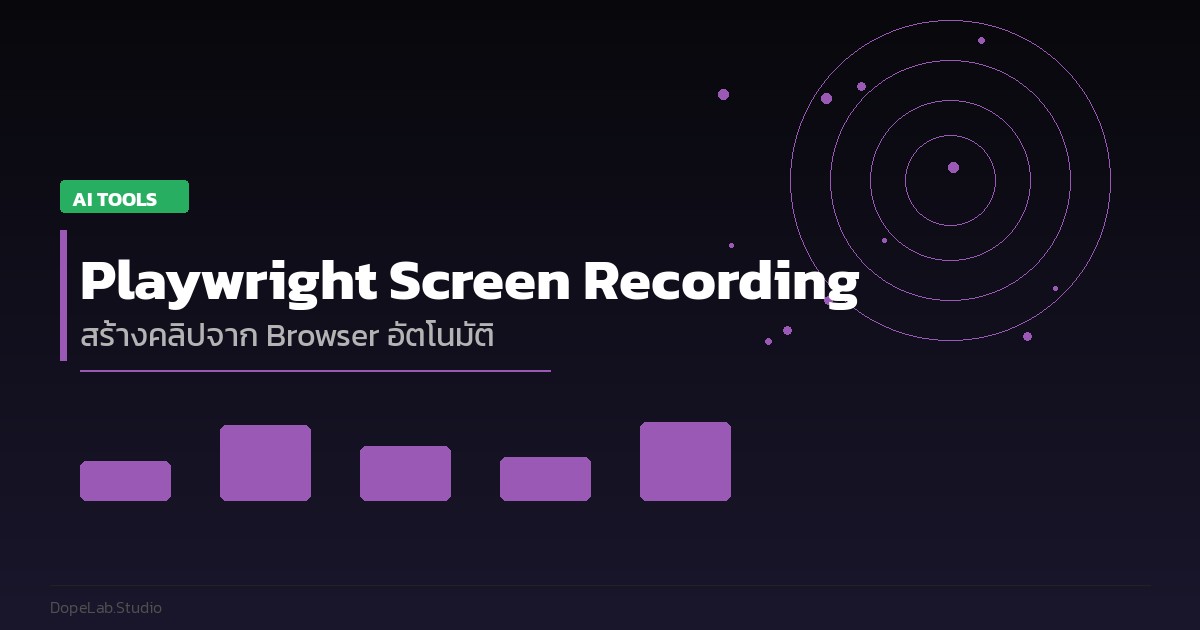
Playwright แก้ปัญหานี้ได้ด้วยการ record browser session เป็น video อัตโนมัติ ผ่านโค้ด 3-4 บรรทัด
Playwright คืออะไร
Playwright คือ open-source framework จาก Microsoft สำหรับ browser automation รองรับ Chromium, Firefox, WebKit ด้วย API เดียวกัน เดิมใช้สำหรับ test automation แต่ใน 2026 นักพัฒนาและ content creator เริ่มเอามาใช้ทำ automated screen recording มากขึ้น
Video Recording ใน Playwright ทำงานยังไง
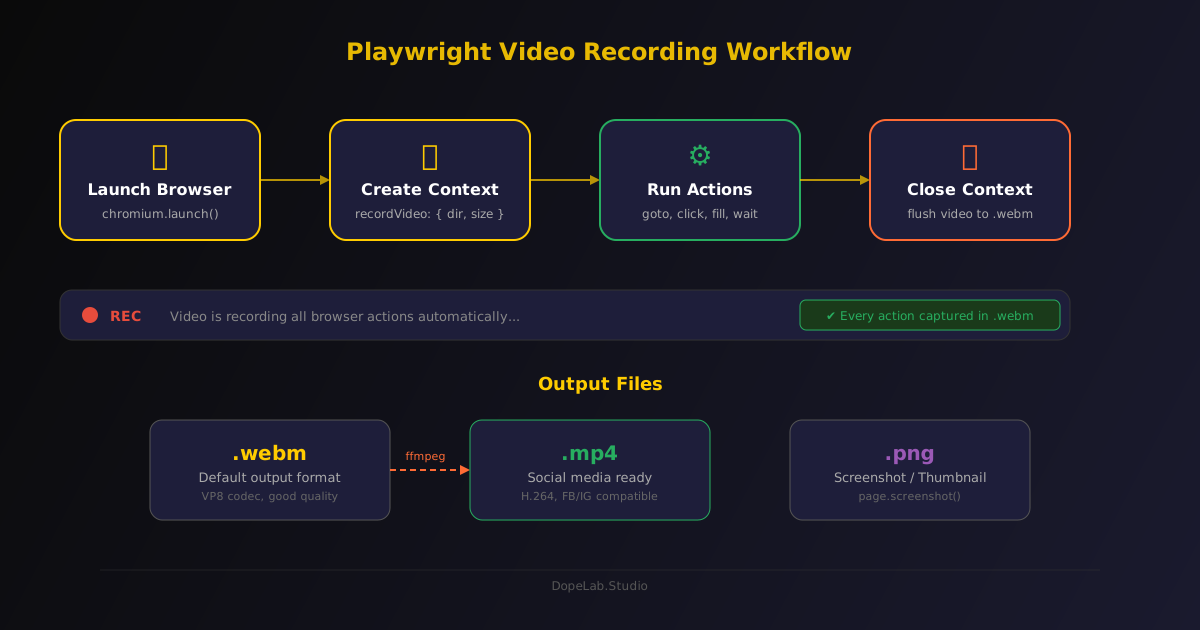
Playwright record video ที่ context level — หมายความว่าทุก action ในหน้านั้นจะถูกบันทึกโดยอัตโนมัติ ไม่ต้อง start/stop recording เอง
Basic Setup: 10 บรรทัดได้ video
import { chromium } from '@playwright/test';

(async () => {
  const browser = await chromium.launch();

  // สร้าง context พร้อม video recording
  const context = await browser.newContext({
    recordVideo: {
      dir: './recordings/',
      size: { width: 1280, height: 720 }
    }
  });

  const page = await context.newPage();

  // ทำ actions ใดก็ได้ — ทุกอย่างถูก record
  await page.goto('https://example.com');
  await page.click('button.submit');
  await page.fill('#email', 'demo@example.com');

  // ต้อง close context ก่อน — video จะ flush ตอนนี้
  await context.close();
  await browser.close();
})();
รันแล้วจะได้ไฟล์ .webm ใน ./recordings/ — พร้อมใช้
Config ที่ควรรู้
| Option | ค่าแนะนำ | หมายเหตุ |
|---|---|---|
dir | './recordings/' | path ที่เก็บ video |
size.width | 1280 | ความกว้าง pixel |
size.height | 720 | ความสูง pixel |
| format | webm (default) | แปลง mp4 ด้วย ffmpeg ทีหลัง |
ข้อควรระวัง
ต้อง await context.close() ก่อน browser.close() — ถ้าไม่ทำ video file จะไม่ถูก flush และได้ไฟล์เสียหาย
Use Case 1: Automated Demo สำหรับ Client
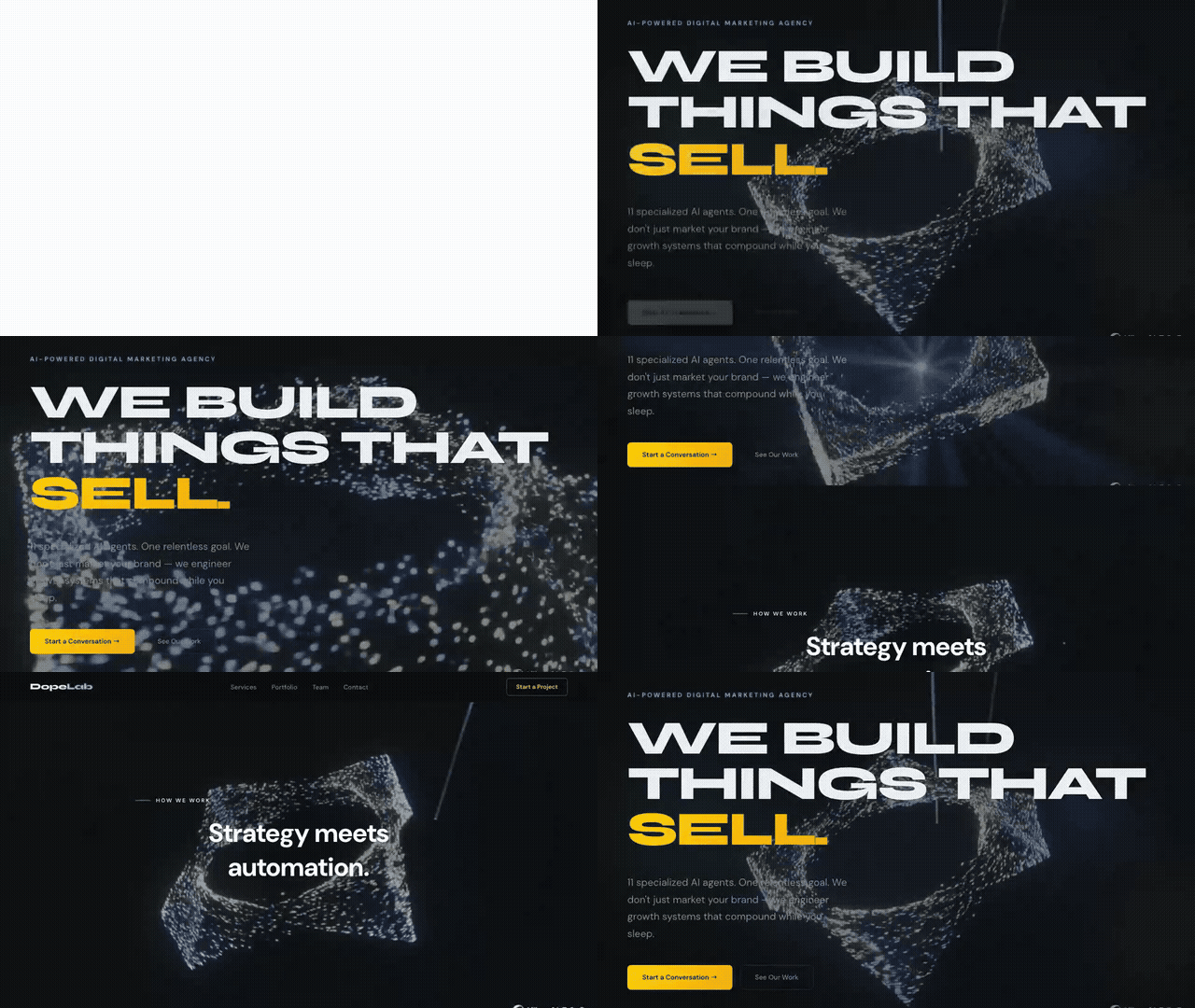
สถานการณ์จริงที่ผมใช้บ่อยที่สุด — ต้องส่ง demo ให้ client เห็นว่า feature ใหม่ทำงานยังไง
แทนที่จะจับหน้าจอเอง เขียน script ครั้งเดียว รันได้ทุกครั้ง:
import { chromium } from '@playwright/test';
import path from 'path';

async function recordClientDemo() {
  const browser = await chromium.launch({ headless: false }); // false = เห็น browser

  const context = await browser.newContext({
    recordVideo: {
      dir: './demos/',
      size: { width: 1920, height: 1080 } // Full HD สำหรับ presentation
    },
    viewport: { width: 1920, height: 1080 }
  });

  const page = await context.newPage();

  // Demo Flow
  await page.goto('https://app.example.com/login');
  await page.waitForLoadState('networkidle'); // รอโหลดจริงๆ

  await page.fill('#username', 'demo@client.com');
  await page.fill('#password', 'demo-password');
  await page.click('[data-testid="login-btn"]');

  await page.waitForURL('**/dashboard');
  await page.waitForTimeout(1500); // pause ให้ดูชัดๆ

  // Navigate ต่อ
  await page.click('[data-nav="reports"]');
  await page.waitForTimeout(2000);

  // Screenshot สำหรับ thumbnail ด้วย
  await page.screenshot({ path: './demos/thumbnail.png' });

  await context.close(); // flush video
  await browser.close();

  console.log('Demo recorded ✓');
}

recordClientDemo();
ทุกครั้งที่ update feature — รัน script เดิม ได้ demo version ใหม่ ใช้เวลา 2 นาที
Use Case 2: Content Creator Pipeline
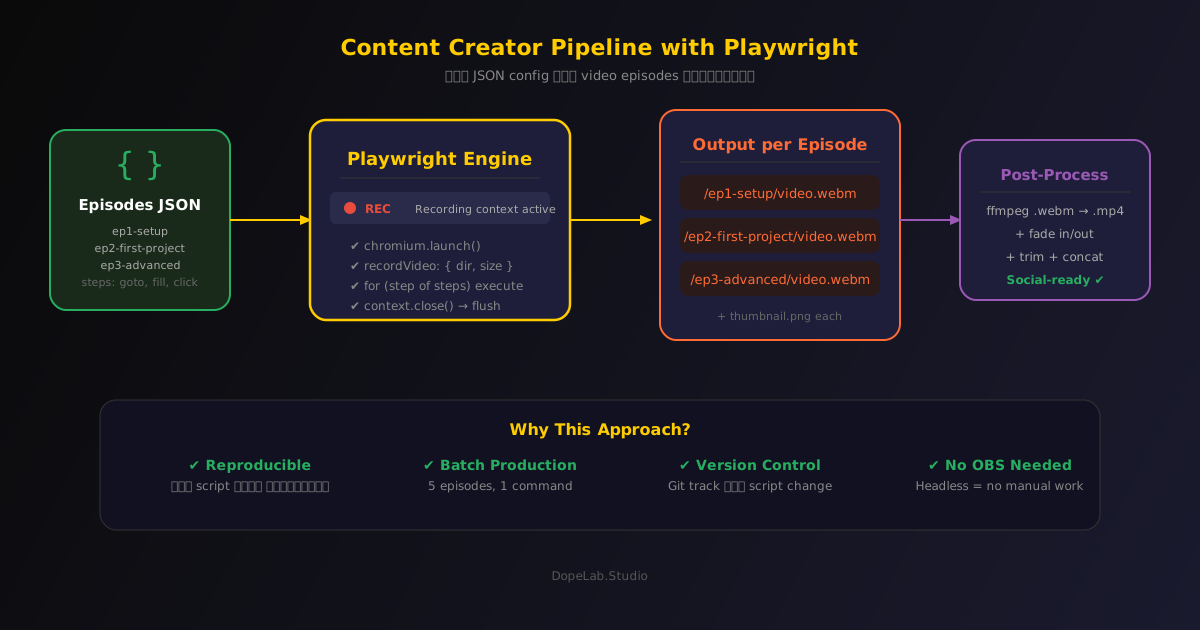
นี่คือ use case ที่น่าสนใจกว่า — ใช้ Playwright เป็นส่วนหนึ่งของ content automation pipeline
Scenario: ต้องทำ series สอนการใช้ tool ใหม่ 5 episodes
แทนที่จะนั่ง record เอง เขียน script แต่ละ episode แล้วรันอัตโนมัติ:
import { chromium } from '@playwright/test';

const episodes = [
  {
    name: 'ep1-setup',
    steps: [
      { action: 'goto', url: 'https://tool.example.com/signup' },
      { action: 'fill', selector: '#email', value: 'demo@email.com' },
      { action: 'click', selector: '.signup-btn' },
      { action: 'wait', ms: 2000 }
    ]
  },
  {
    name: 'ep2-first-project',
    steps: [
      { action: 'goto', url: 'https://tool.example.com/projects/new' },
      { action: 'fill', selector: '#project-name', value: 'My First Project' },
      { action: 'click', selector: '.create-btn' },
      { action: 'wait', ms: 3000 }
    ]
  }
];

async function recordEpisode(episode: typeof episodes[0]) {
  const browser = await chromium.launch();
  const context = await browser.newContext({
    recordVideo: { dir: `./episodes/${episode.name}/` }
  });
  const page = await context.newPage();

  for (const step of episode.steps) {
    if (step.action === 'goto') await page.goto(step.url!);
    if (step.action === 'fill') await page.fill(step.selector!, step.value!);
    if (step.action === 'click') await page.click(step.selector!);
    if (step.action === 'wait') await page.waitForTimeout(step.ms!);
  }

  await context.close();
  await browser.close();
}

// Record ทุก episode
for (const ep of episodes) {
  await recordEpisode(ep);
  console.log(`${ep.name} ✓`);
}
เปลี่ยน steps ในไฟล์ JSON รันใหม่ — ได้คลิปใหม่โดยไม่ต้องแตะ OBS เลย
แปลง WebM เป็น MP4 (ต้องทำเพิ่มอีก 1 ขั้น)
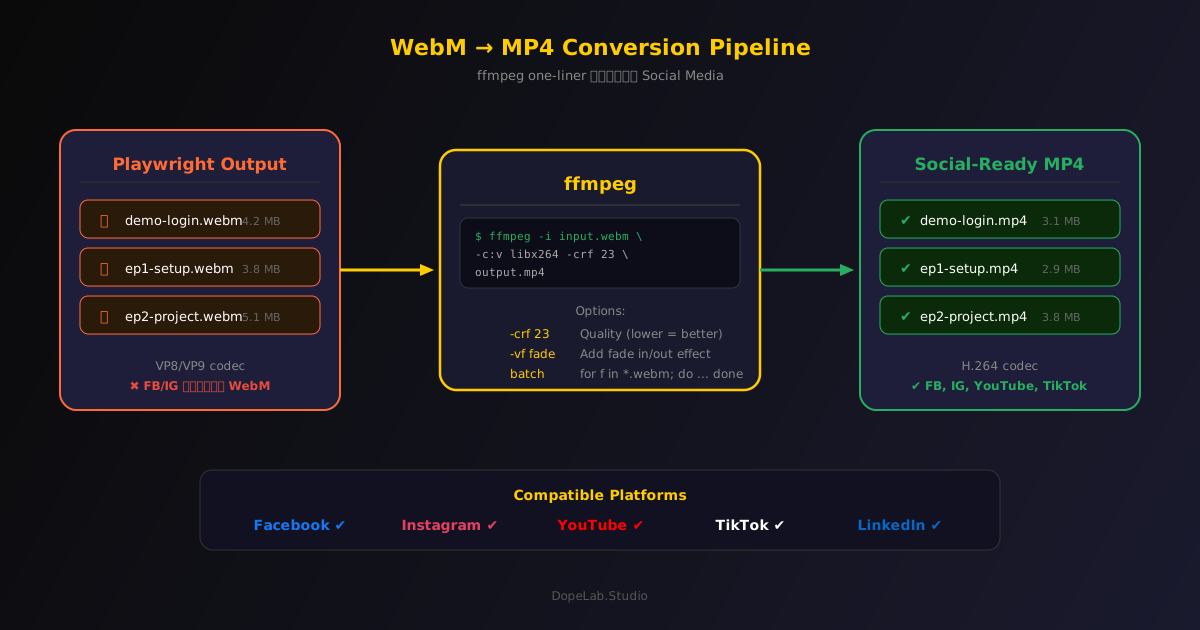
Playwright ออก output เป็น .webm โดย default ซึ่ง Facebook, Instagram ไม่รับตรงๆ ต้องแปลงก่อน:
# แปลงไฟล์เดียว
ffmpeg -i input.webm -c:v libx264 -crf 23 output.mp4

# แปลง batch ทุกไฟล์ใน folder
for f in ./recordings/*.webm; do
  ffmpeg -i "$f" -c:v libx264 -crf 23 "${f%.webm}.mp4"
done

# เพิ่ม fade in/out ไปด้วยเลย
ffmpeg -i input.webm -c:v libx264 \
  -vf "fade=in:0:30,fade=out:st=10:d=1" \
  output.mp4
ถ้าใช้ Node.js สามารถ shell exec ffmpeg ได้ใน pipeline เดียวกัน ไม่ต้องทำแยก
MCP Server สำหรับ Playwright + Video (2026)

ของใหม่ในปี 2026 — มี MCP server ที่เพิ่ม video recording ให้ Playwright โดยเฉพาะ playwright-record-mcp
ทำให้ AI agent สามารถควบคุม browser และ record video ไปพร้อมกันได้:
// Start recording
await mcpServer.invoke('browser_record_start', {
  path: './recordings/session.mp4',
  format: 'mp4'
});

// AI agent ทำงาน
await mcpServer.invoke('browser_navigate', { url: 'https://example.com' });
const snapshot = await mcpServer.invoke('browser_snapshot');

// Stop recording
await mcpServer.invoke('browser_record_stop');
ความน่าสนใจคือ MCP server นี้ใช้ accessibility tree แทน pixel capture ทำให้เร็วกว่าและไม่ต้องการ vision model — เหมาะมากสำหรับ AI agent ที่ต้องการ record พฤติกรรมตัวเองเพื่อ audit หรือ debug
เมื่อไหร่ควรใช้ Playwright vs OBS
| สถานการณ์ | Playwright | OBS |
|---|---|---|
| Demo ที่ต้องทำซ้ำหลายครั้ง | ✅ | ❌ |
| Tutorial ที่ steps ตายตัว | ✅ | ❌ |
| Live stream / Real-time | ❌ | ✅ |
| Record desktop app (ไม่ใช่ browser) | ❌ | ✅ |
| Automated testing + video proof | ✅ | ❌ |
| ต้องการ record with voiceover | ❌ | ✅ |
Playwright ไม่ใช่ replacement ของ OBS — มันเป็น tool สำหรับ specific use case คือ "browser + automation + reproducible"
ถ้างานต้องการ flexibility หรือมี human interaction → ยังต้องใช้ OBS
เริ่มใช้ได้ใน 5 นาที
# Install
npm init playwright@latest
# เลือก TypeScript, Chromium, no GitHub Actions

# รัน test พร้อม video
npx playwright test --reporter=html
# ดู video ใน playwright-report/index.html

# หรือรัน script ตรงๆ
npx ts-node your-recording-script.ts
ถ้าเปิด Playwright Report จะเห็น video replay ของแต่ละ test — คลิกดูได้เลยในหน้า browser ไม่ต้องดาวน์โหลดไฟล์
Quick Win
เริ่มด้วย record test เดียวก่อน แค่ browse หน้าเว็บ site ของตัวเอง 3-4 หน้า แล้วดู video output จะเห็นทันทีว่ามันทำงานยังไง หลังจากนั้นค่อย build automation จริงๆ
ติดตาม DopeLab ที่ dopelab.studio — ของแบบนี้ออกมาใหม่ทุกอาทิตย์
มีคำถามเรื่อง Playwright หรือ automation? DM มาได้เลย